> ## Documentation Index
> Fetch the complete documentation index at: https://docs.switch.vaultera.co/llms.txt
> Use this file to discover all available pages before exploring further.
# Test the Configuration Using the Dashboard
> Learn how to test your connector configuration using the Vaultera Switch dashboard
After configuring the connector, follow these steps to test your setup:
### Step 1: Navigate to the Dashboard
Go to the **[Dashboard Home Page](https://app.test.switch.vaultera.co)**.
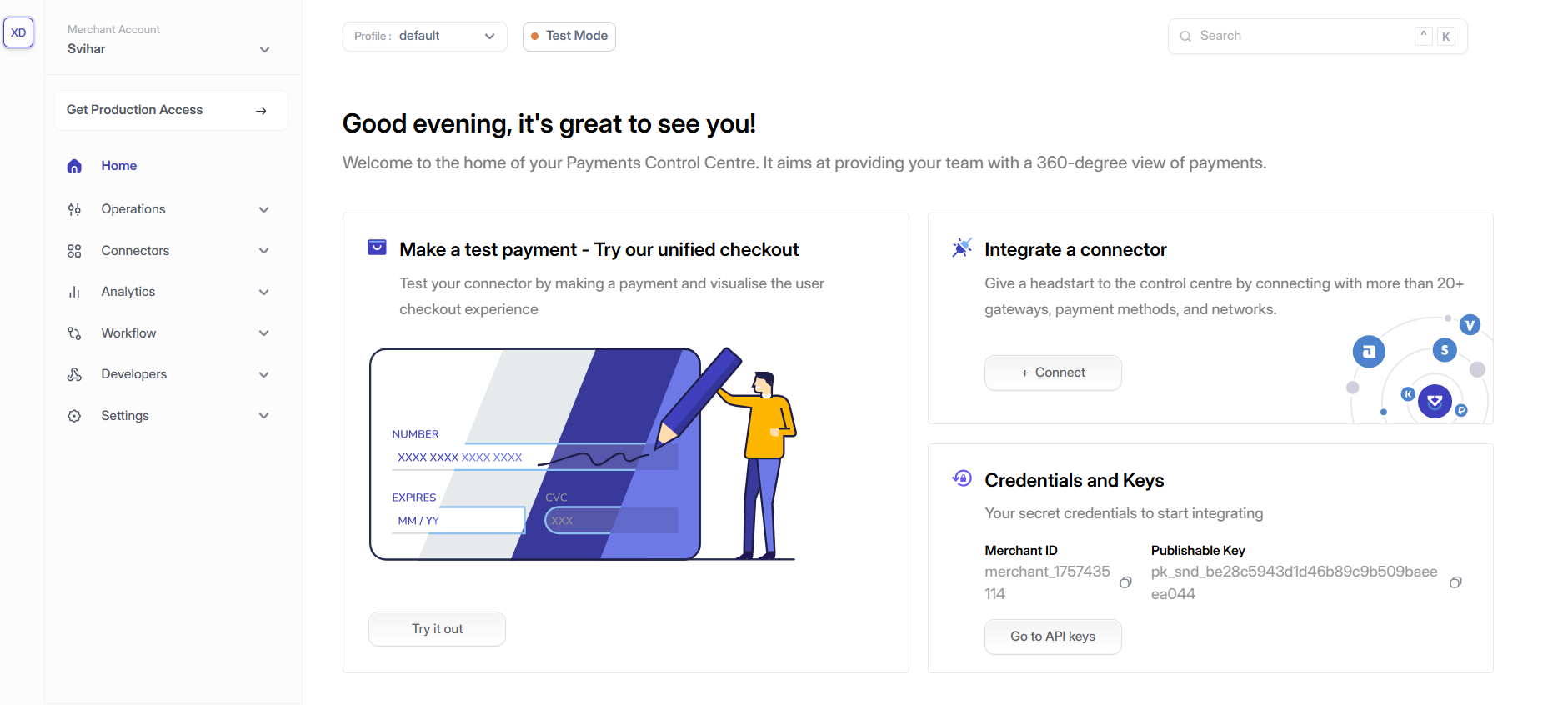 ### Step 2: Try a Test Payment
Click on **“Try a test payment”** available on the home page.
You can also access the test payment feature directly from the dashboard navigation menu.
### Step 2: Try a Test Payment
Click on **“Try a test payment”** available on the home page.
You can also access the test payment feature directly from the dashboard navigation menu.
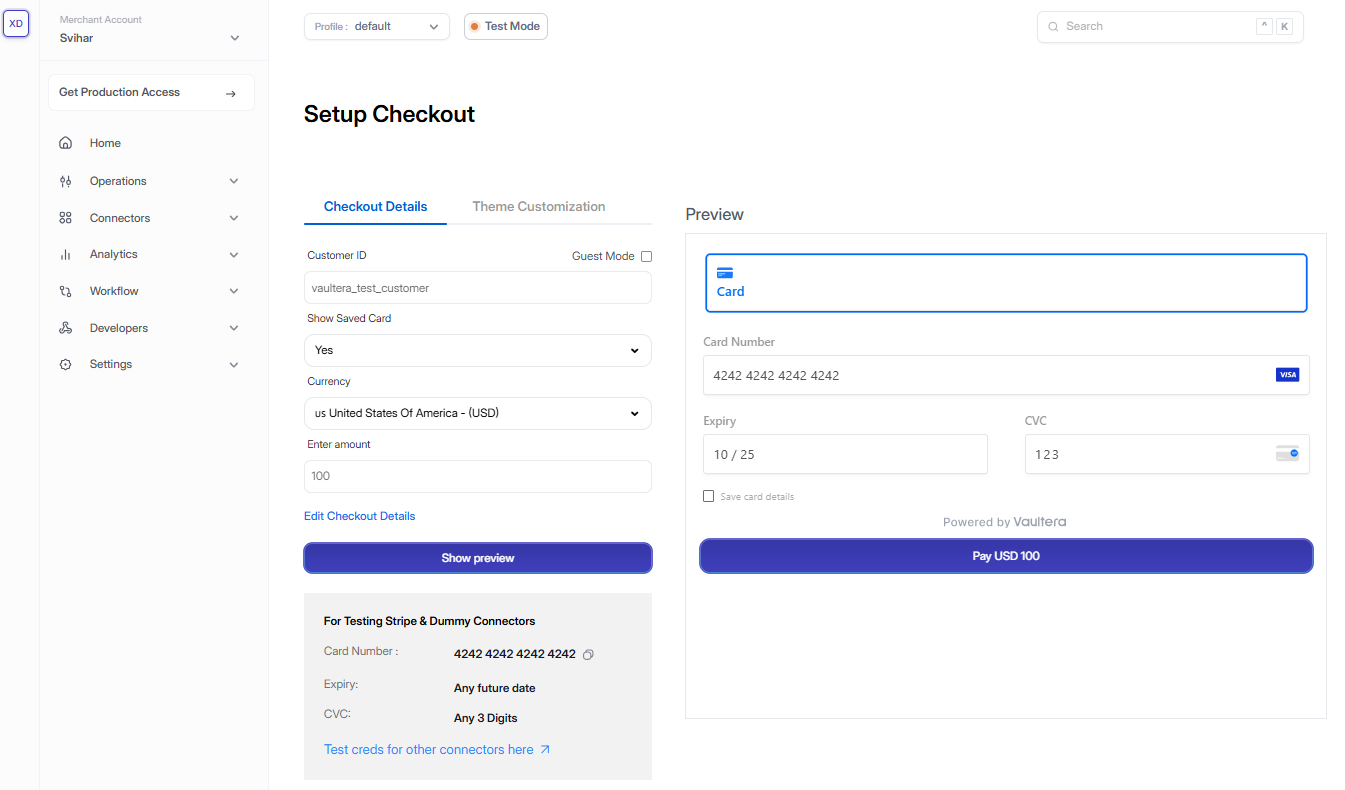
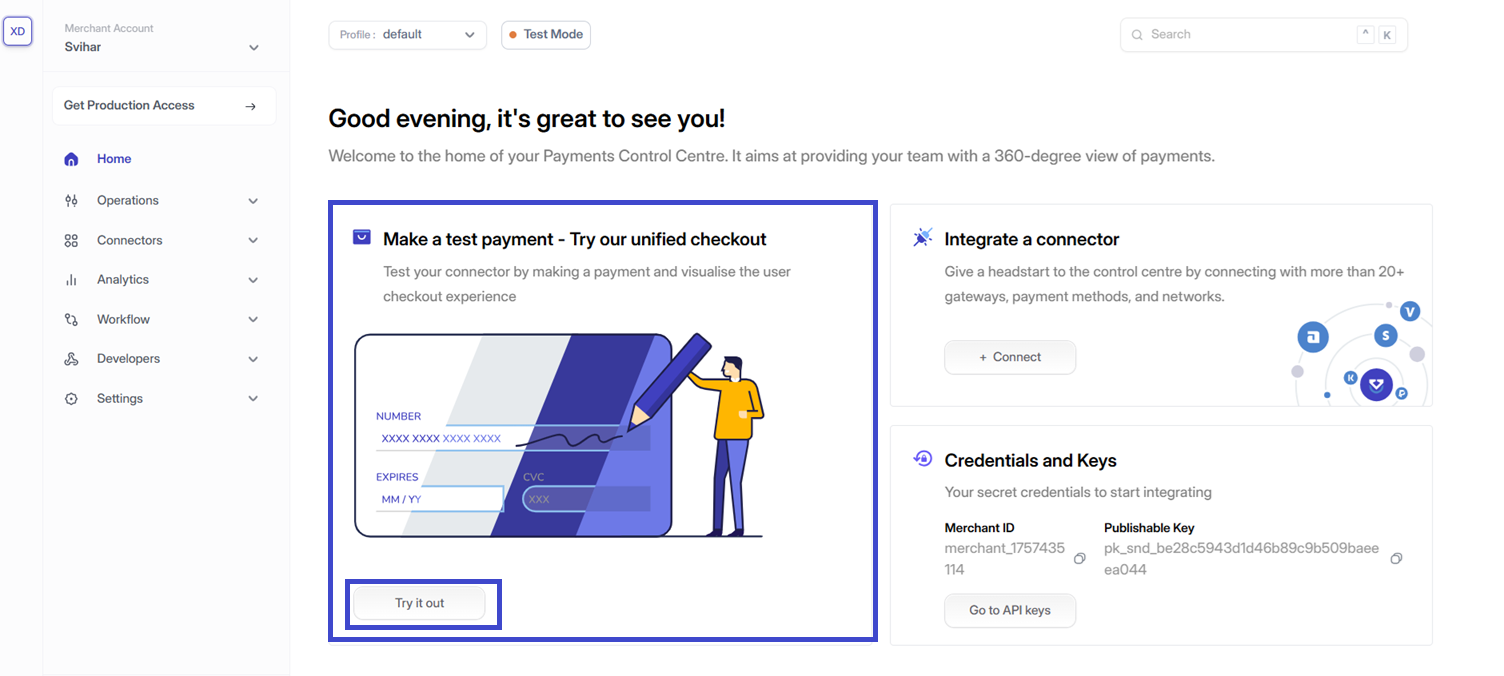 ### Step 3: Set Up Demo Checkout
Fill in the following details:
* **Business Profile**
* **Profile ID**
* **Currency**
* **Amount**
### Step 3: Set Up Demo Checkout
Fill in the following details:
* **Business Profile**
* **Profile ID**
* **Currency**
* **Amount**
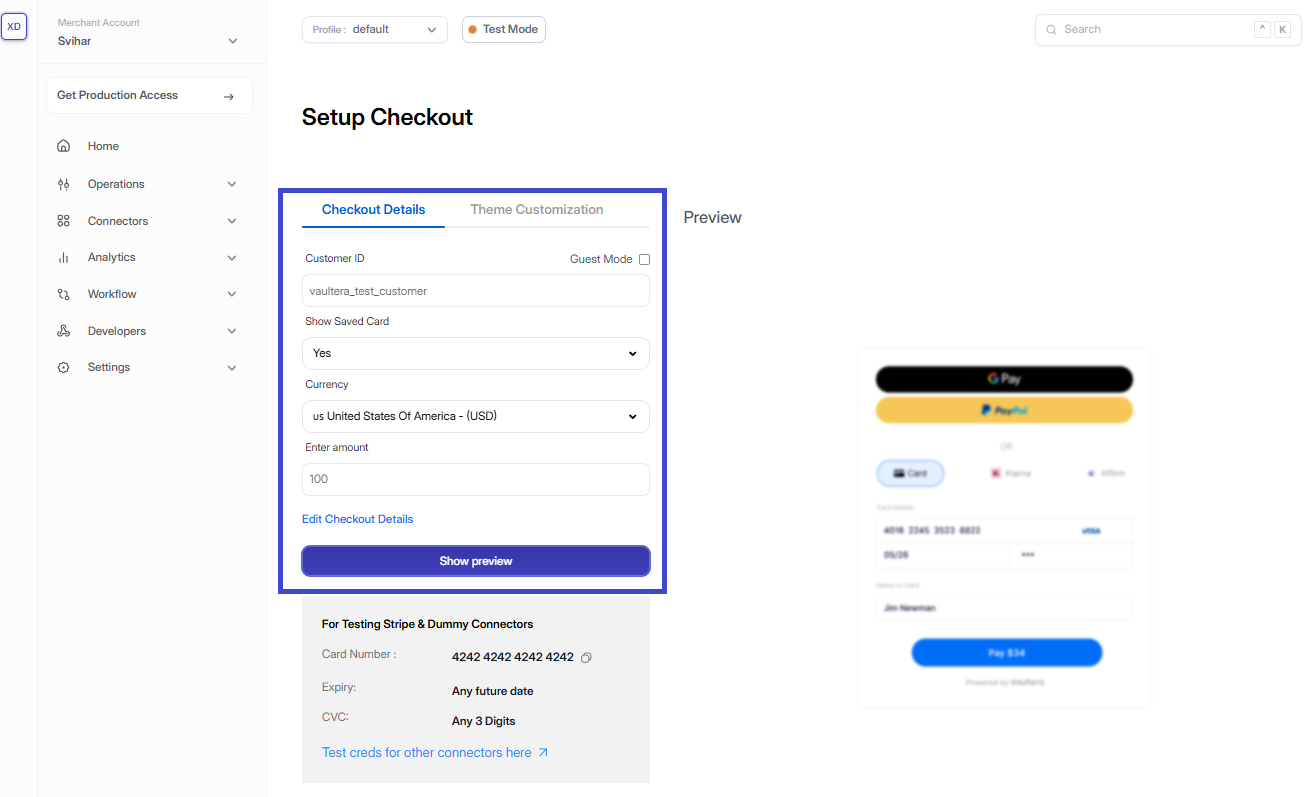 Click **“Show Preview”** to see your demo checkout page in the preview section.
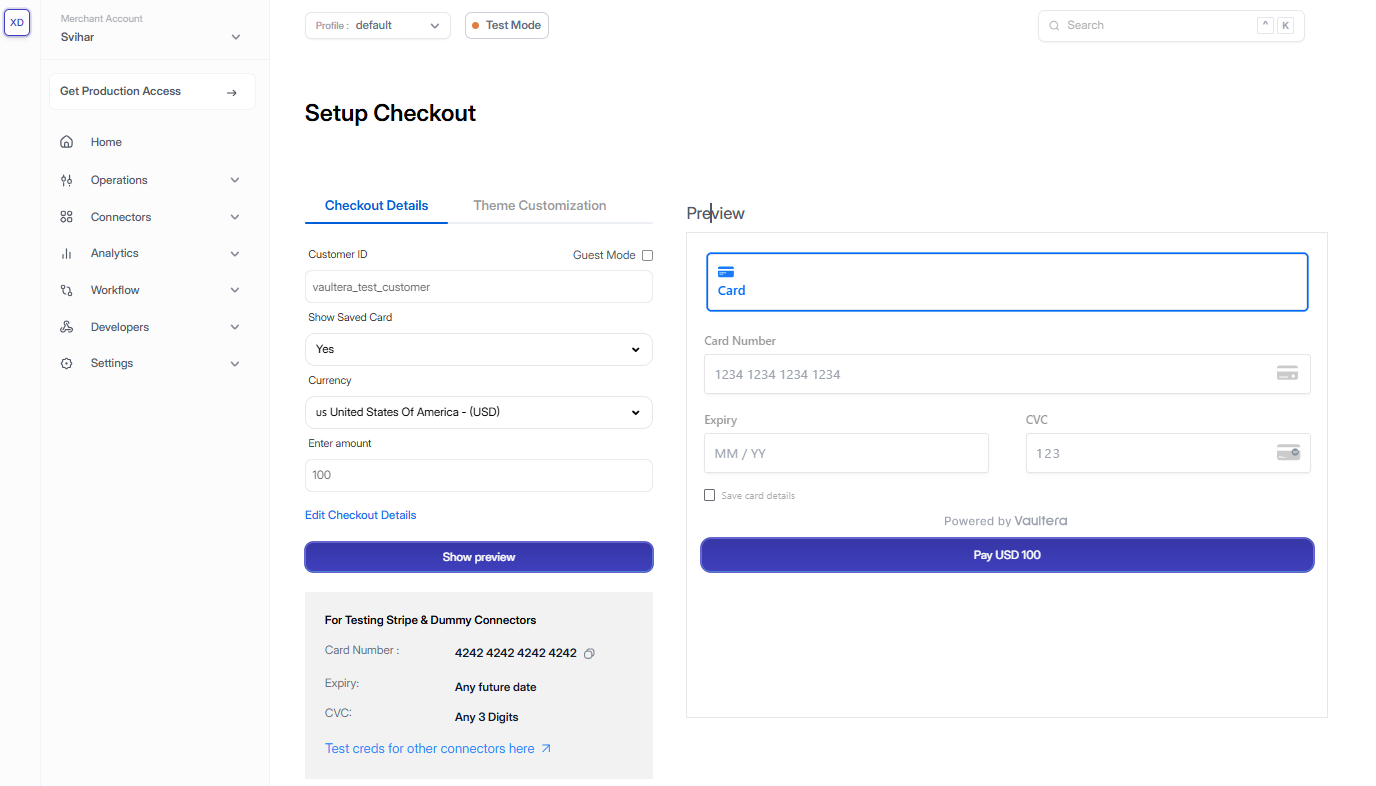 ### Step 4: Make a Test Payment
* Choose your preferred payment method on the demo checkout page.
* (You can refer to the test card data provided below.)
* Click **Pay**.
### Step 4: Make a Test Payment
* Choose your preferred payment method on the demo checkout page.
* (You can refer to the test card data provided below.)
* Click **Pay**.
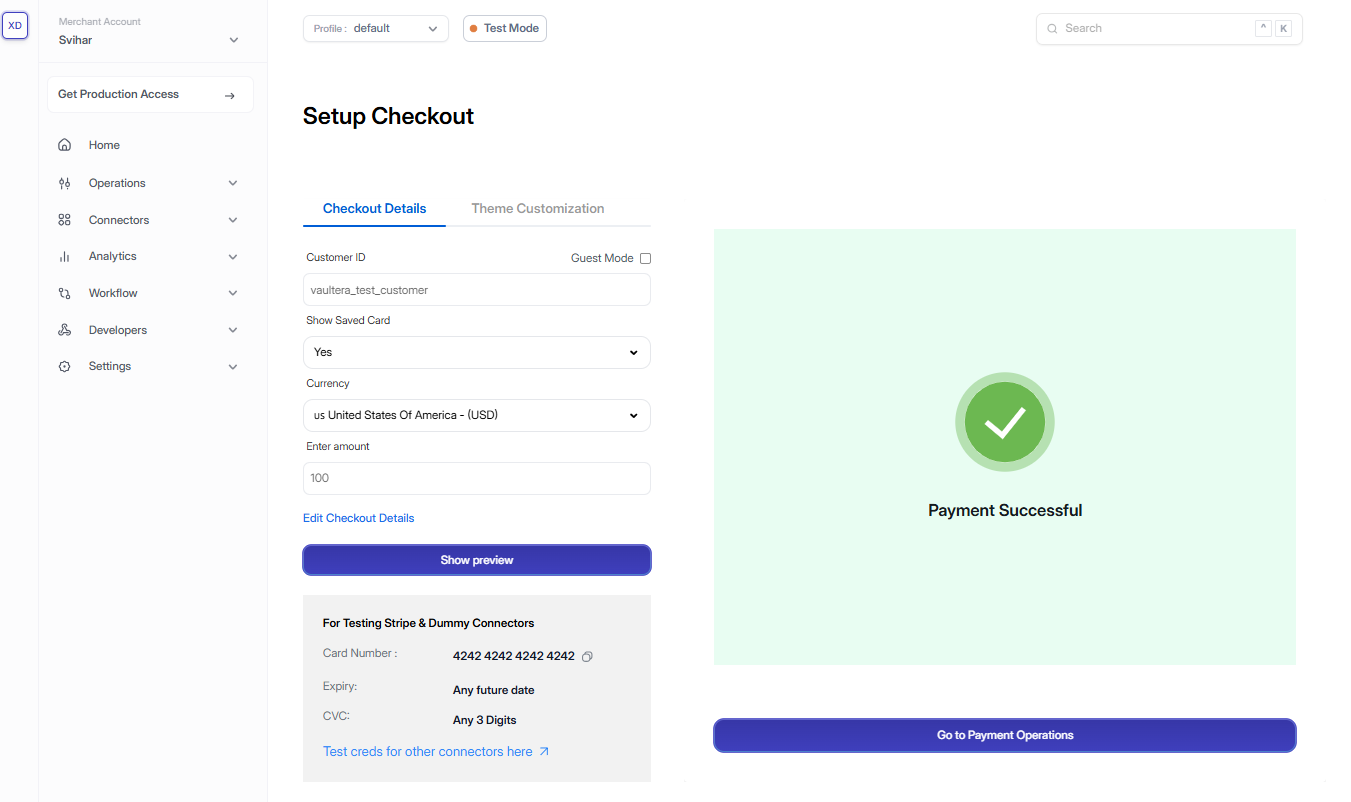
 * A **Success** message will be displayed.
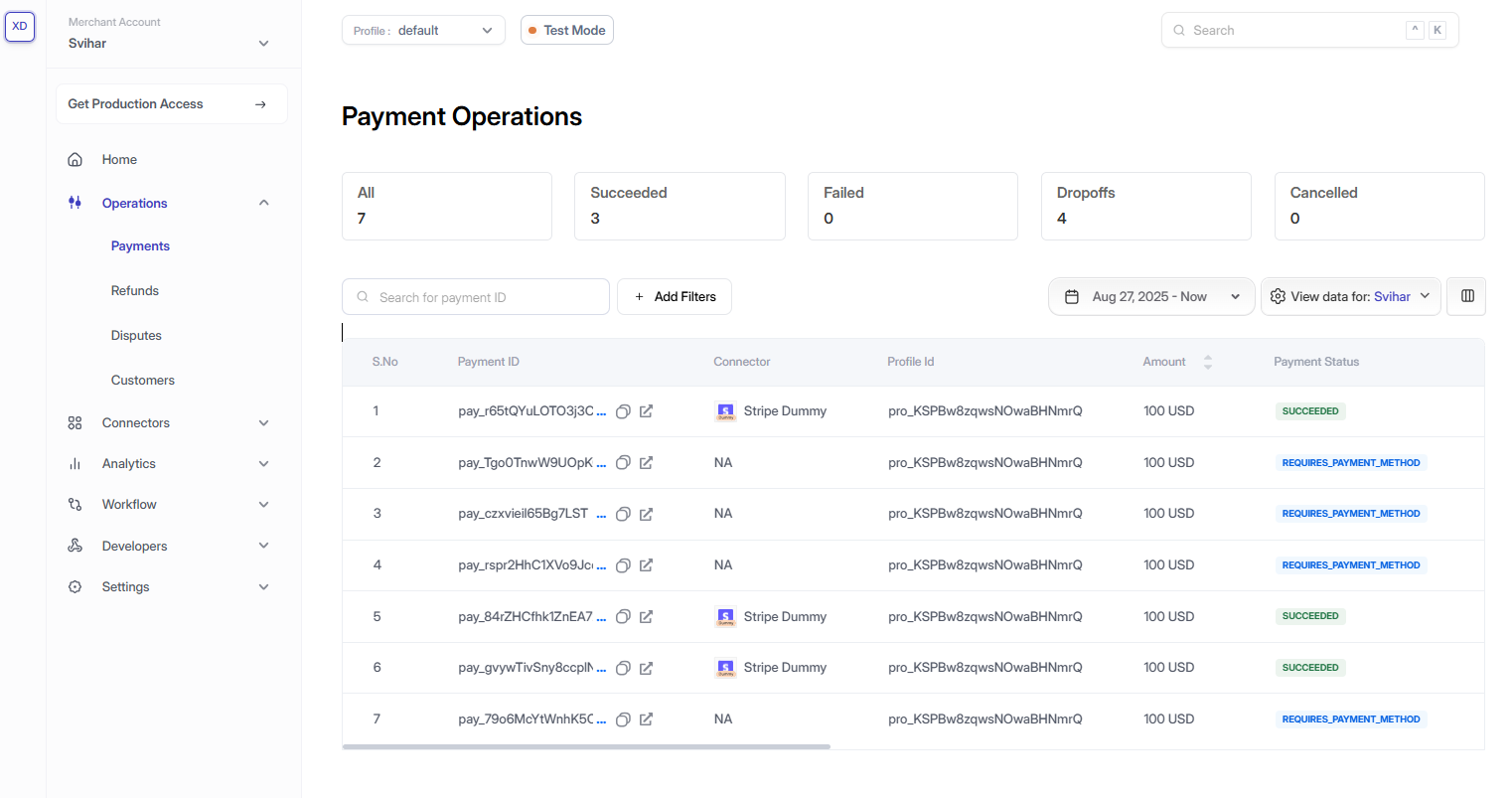
 ### Step 5: Validate the Transaction
* Go to the left sidebar in the Vaultera Switch dashboard.
* Navigate to **Operations → Payments**.
* Your transaction will be listed under the **Order Management** tab.
### Step 5: Validate the Transaction
* Go to the left sidebar in the Vaultera Switch dashboard.
* Navigate to **Operations → Payments**.
* Your transaction will be listed under the **Order Management** tab.
 ***
## Test Credentials
### Test Cards for Popular Connectors
| Connector | Card Number | Expiry (MM/YY) | CVV |
| ----------------------- | ------------------- | -------------- | --- |
| **Valitorpay by Rapyd** | 4921 8168 5287 2867 | 12/30 | 737 |
***
## Dummy Connector – Test Cards
**Note:** Dummy connectors support **payments** and **refunds** only.
* Payments **expire after 2 days**.
* **Refunds are not possible** for expired payments.
* Use any valid **future expiration date** and **3-digit CVV**.
### Non-3DS Flows
**Successful Payments**
* 4111 1111 1111 1111
* 4242 4242 4242 4242
* 5555 5555 5555 4444
* 3800 0000 0000 06
* 3782 8224 6310 005
* 6011 1111 1111 1117
**Card Declined**
* 5105 1051 0510 5100
* 4000 0000 0000 0002
**Insufficient Funds**
* 4000 0000 0000 9995
**Lost Card**
* 4000 0000 0000 9987
**Stolen Card**
* 4000 0000 0000 9979
### 3DS Flows
**Successful Payment**
* 4000 0038 0000 0446
***
## Google Pay – Test Credentials
To test Google Pay:
1. **Use your Gmail account** and join the [Google Pay Test User Group](https://developers.google.com/pay/api).
2. You’ll see a confirmation page:
*“Congratulations! You now have access to our test suite! No further action is required.”*
3. Stay logged into Gmail and select **Google Pay** on the checkout page.
You’ll automatically see test cards during the flow.
***
## Apple Pay – Test Credentials
To test Apple Pay:
1. Follow steps in the [Apple Pay Sandbox Testing Docs](https://developer.apple.com/documentation/passkit/apple_pay/testing_in_sandbox).
2. Apple provides test cards for different regions and card brands.
3. Use **Touch ID** on your MacBook or iPhone linked to your Apple account.
Apple Pay sandbox testing is only supported in **15 countries**. Safari uses your system preferences to detect your region.
### If you're not in a supported country:
Change your region:
System Preferences → Language & Region → Choose a supported country
***
## Test Credentials
### Test Cards for Popular Connectors
| Connector | Card Number | Expiry (MM/YY) | CVV |
| ----------------------- | ------------------- | -------------- | --- |
| **Valitorpay by Rapyd** | 4921 8168 5287 2867 | 12/30 | 737 |
***
## Dummy Connector – Test Cards
**Note:** Dummy connectors support **payments** and **refunds** only.
* Payments **expire after 2 days**.
* **Refunds are not possible** for expired payments.
* Use any valid **future expiration date** and **3-digit CVV**.
### Non-3DS Flows
**Successful Payments**
* 4111 1111 1111 1111
* 4242 4242 4242 4242
* 5555 5555 5555 4444
* 3800 0000 0000 06
* 3782 8224 6310 005
* 6011 1111 1111 1117
**Card Declined**
* 5105 1051 0510 5100
* 4000 0000 0000 0002
**Insufficient Funds**
* 4000 0000 0000 9995
**Lost Card**
* 4000 0000 0000 9987
**Stolen Card**
* 4000 0000 0000 9979
### 3DS Flows
**Successful Payment**
* 4000 0038 0000 0446
***
## Google Pay – Test Credentials
To test Google Pay:
1. **Use your Gmail account** and join the [Google Pay Test User Group](https://developers.google.com/pay/api).
2. You’ll see a confirmation page:
*“Congratulations! You now have access to our test suite! No further action is required.”*
3. Stay logged into Gmail and select **Google Pay** on the checkout page.
You’ll automatically see test cards during the flow.
***
## Apple Pay – Test Credentials
To test Apple Pay:
1. Follow steps in the [Apple Pay Sandbox Testing Docs](https://developer.apple.com/documentation/passkit/apple_pay/testing_in_sandbox).
2. Apple provides test cards for different regions and card brands.
3. Use **Touch ID** on your MacBook or iPhone linked to your Apple account.
Apple Pay sandbox testing is only supported in **15 countries**. Safari uses your system preferences to detect your region.
### If you're not in a supported country:
Change your region:
System Preferences → Language & Region → Choose a supported country